User Guide
How to install the Learner Credential Wallet (LCW)
- First, you will need to download the LCW app on the app store for Apple iOS or GooglePlay store for Android.
- Select "Quick Setup" and enter in a password. You will need to store this password somewhere safe as the LCW does not store personal information, collect data or track usage. Please see the Privacy Policy for more information.
- Select "Take Me To My Wallet." During this setup process, the wallet will create a default profile with a digital identity called a decentralized identifier, or DID. A DID is a permanent, unique ID number stored in your wallet that proves who you are to web entities.
- Your wallet is now set up and ready to store credentials
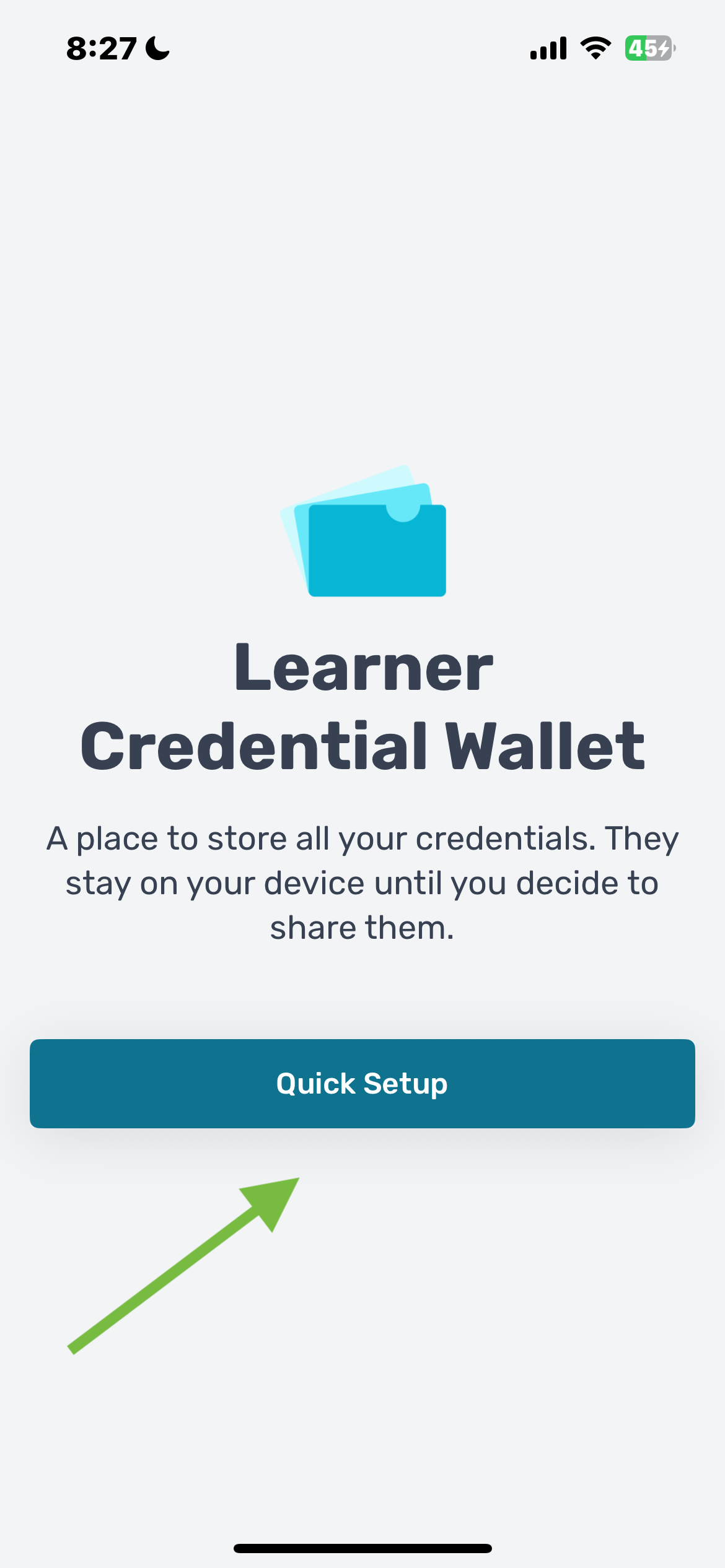
Step 1: Set up your wallet
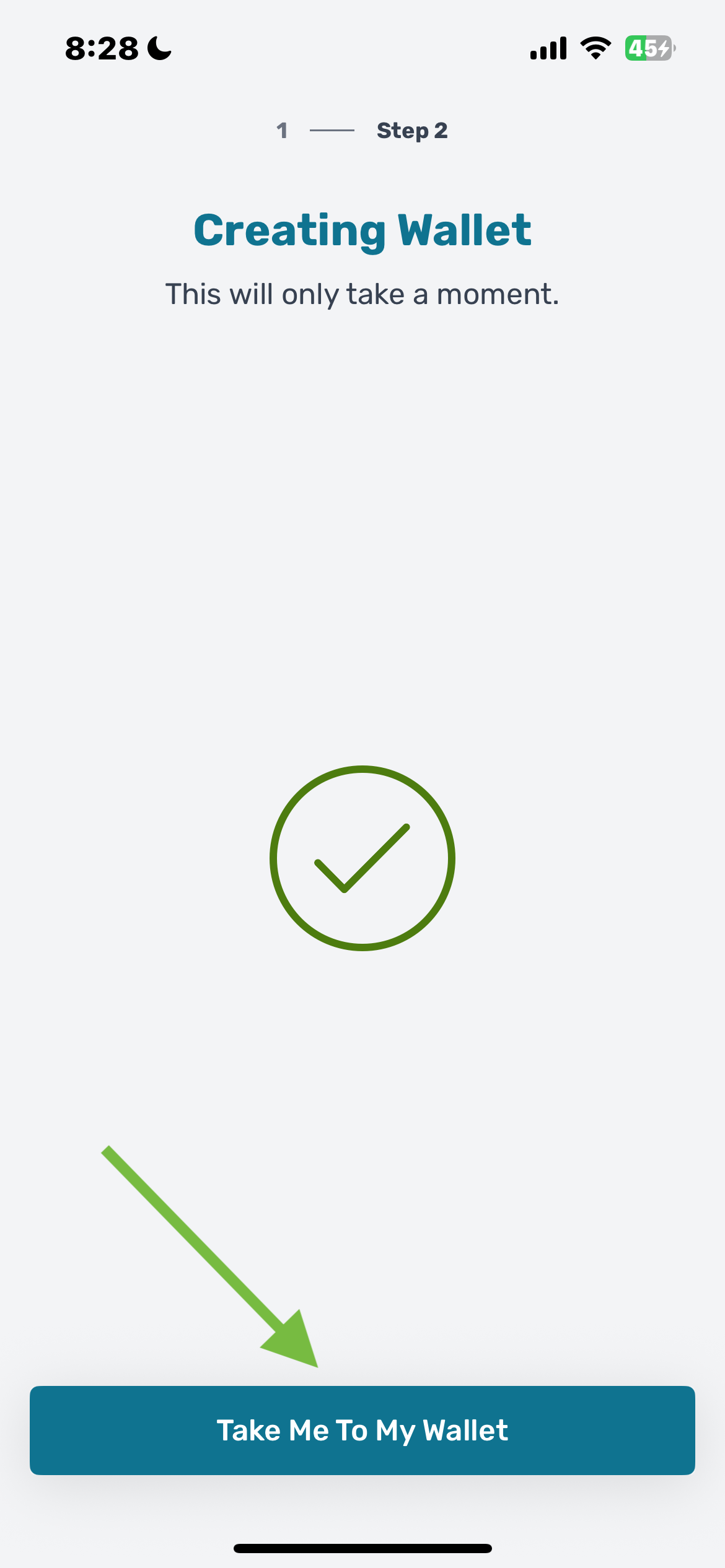
Step 2: Go to your wallet
How to claim a credential
There are several ways you may receive a credential. Your institution may send you an email containing a link or a QR code or there may be instructions for claiming your credential on a course platform or website. Here are the ways you can claim and add your credential to the LCW.
From a QR code:
- Scan the QR code using the camera on your mobile device. If you have downloaded the LCW, this should open the application on your phone.
- Select your profile.
- Select "Accept."
- You will be navigated to the "credential preview" which shows you the rendered credential.
- When you return "home" you will see the credential listed.
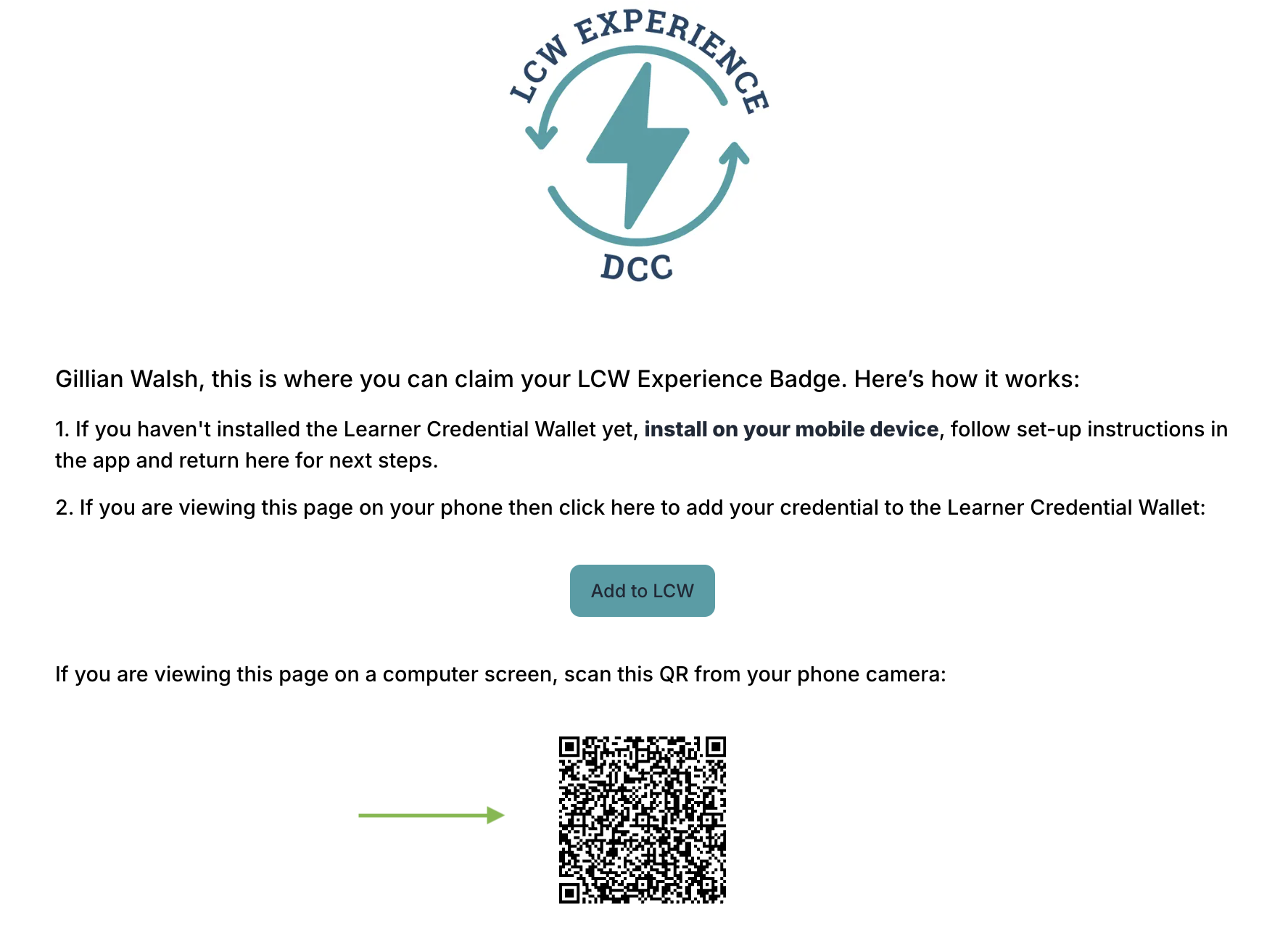
Step 1: Scan QR code
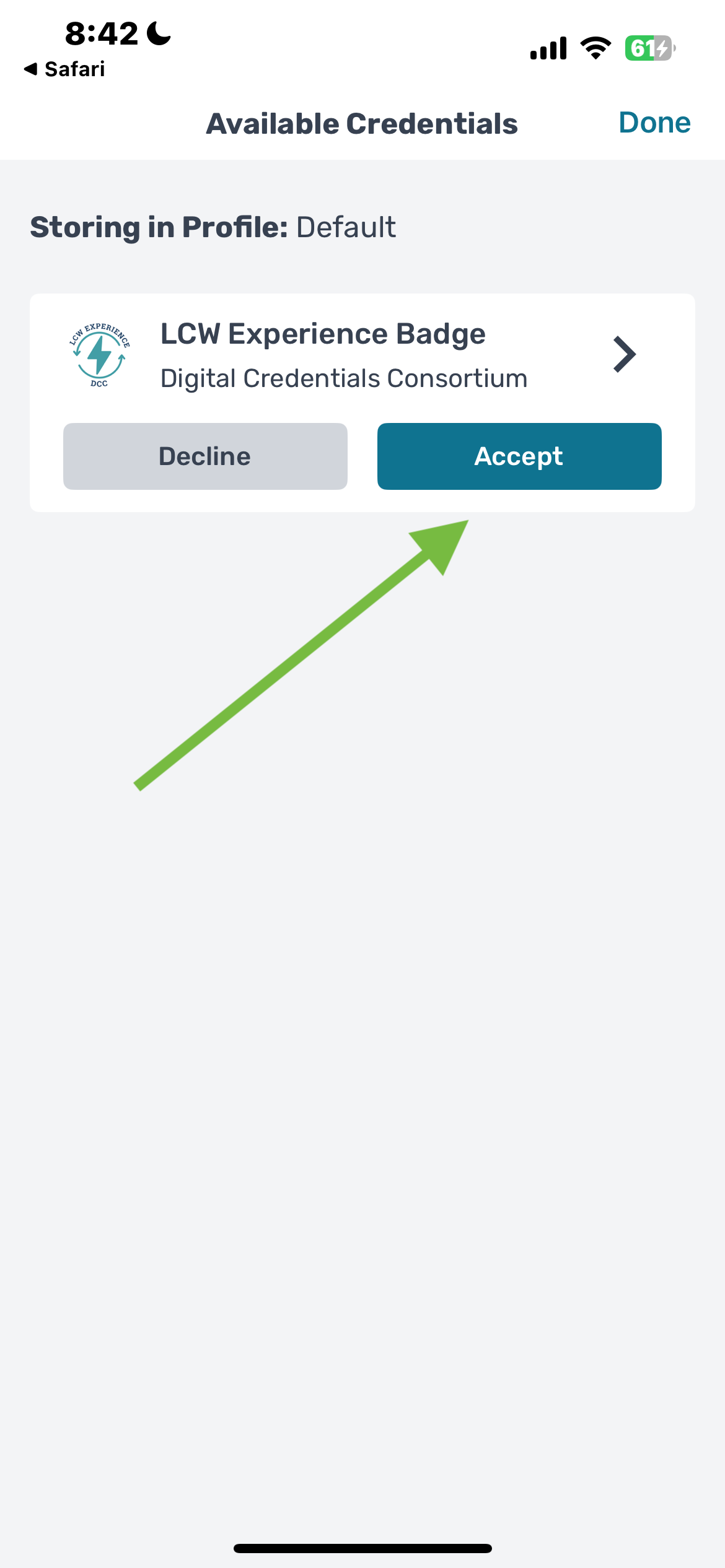
Step 2: Accept credential
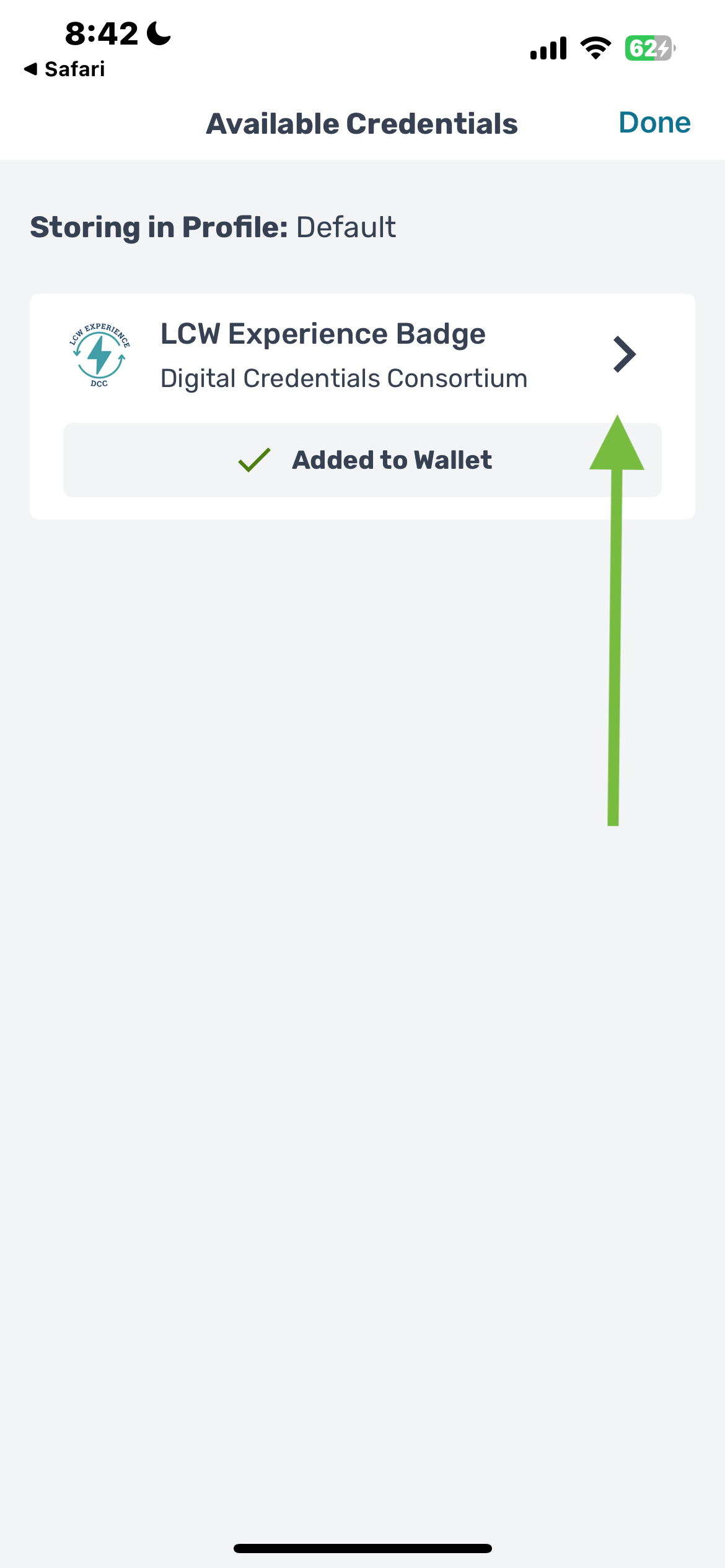
Step 3: Added to wallet. Click to view
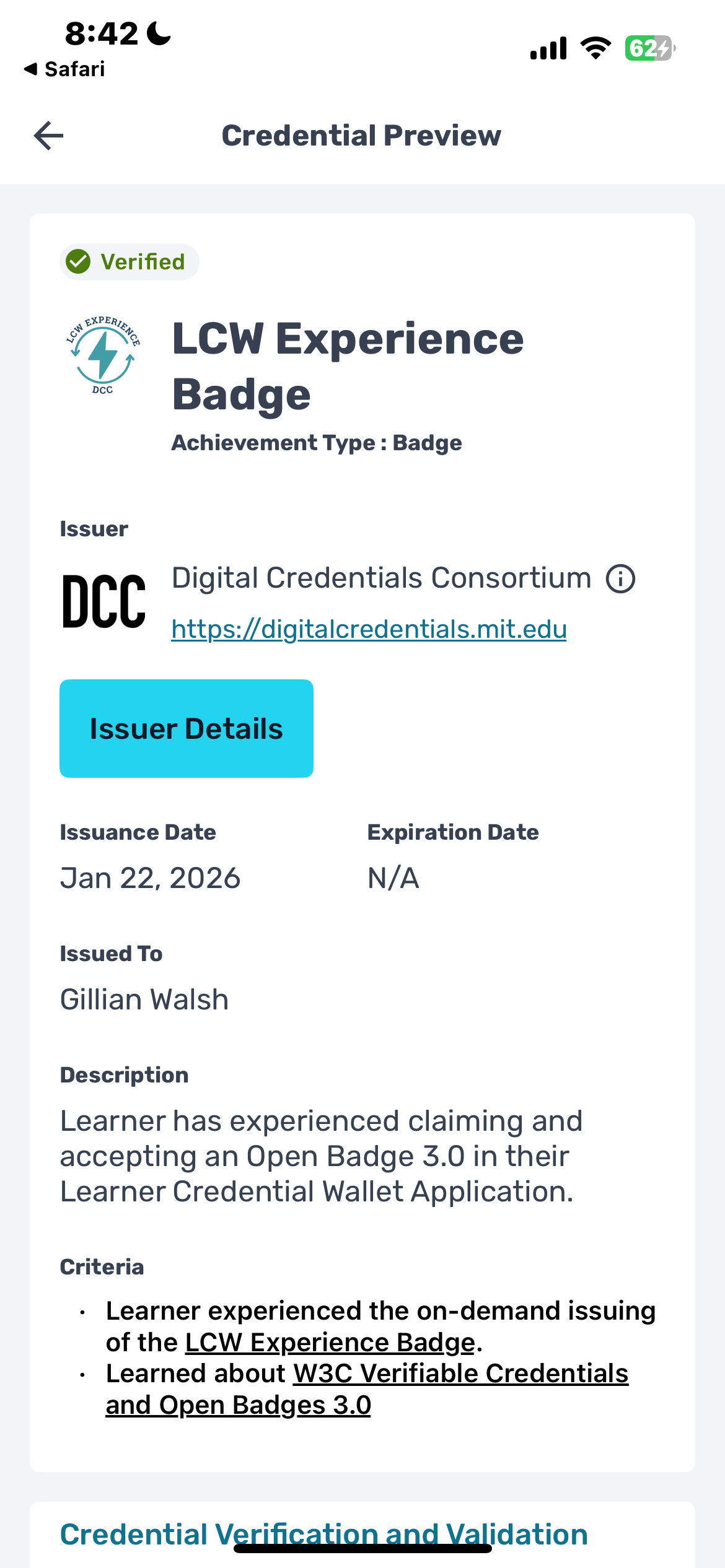
Step 4: Example credential
Paste JSON or URL (a web link)
- Navigate to the "Add Credential" page on the LCW. This is indicated by the plus sign icon on the bottom navigation.
- Locate the box "Paste JSON or URL." If you have a URL or a link you can paste that link into the box. Additionally, if you have JSON — which is a block of code — you can paste that code into the box. Select Add.
- Select your profile.
- Select "Accept."
- You will be navigated to the "credential preview" which shows you the rendered credential.
- When you return "home" you will see the credential listed.
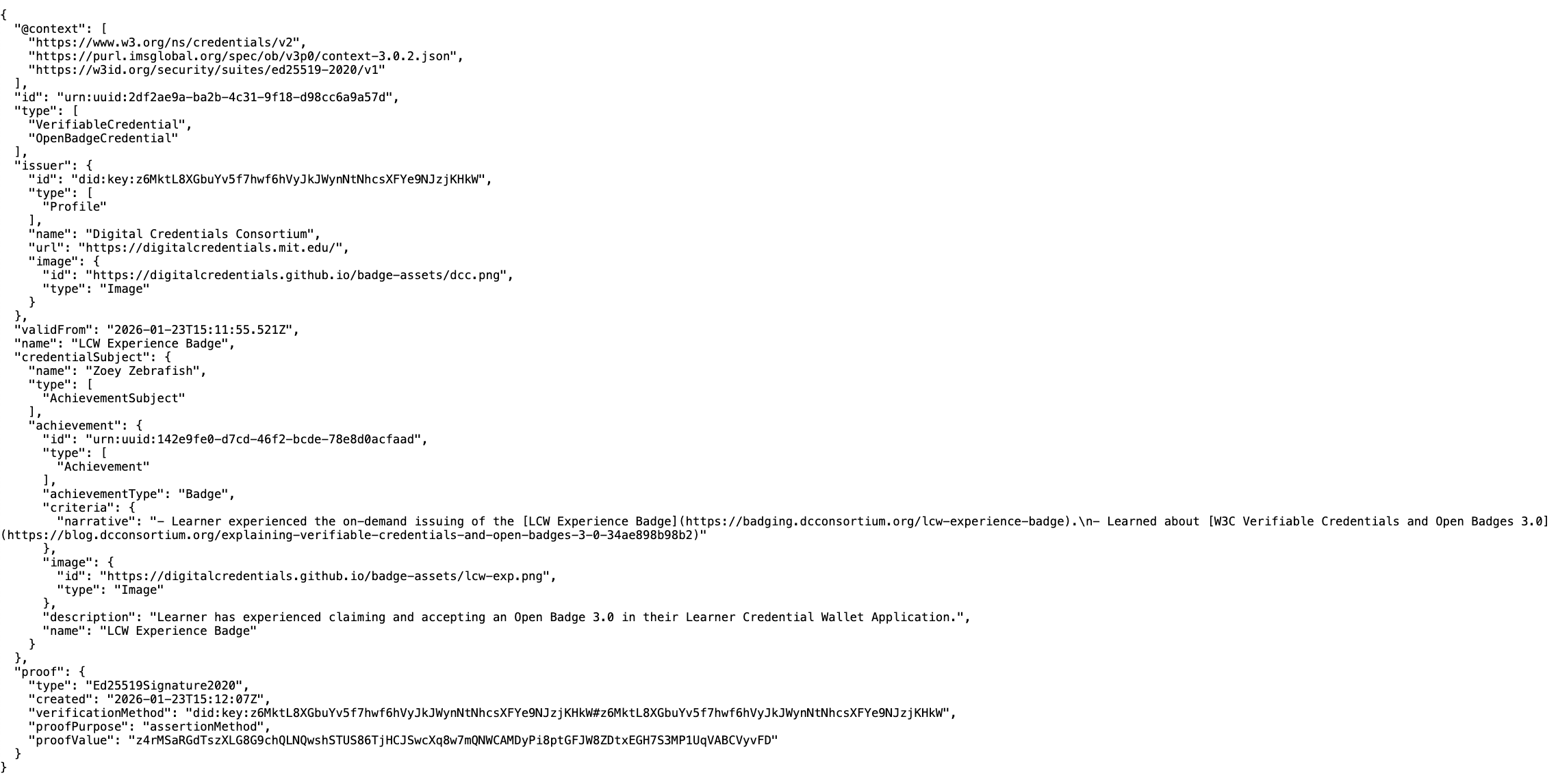
Step 1: Example JSON code
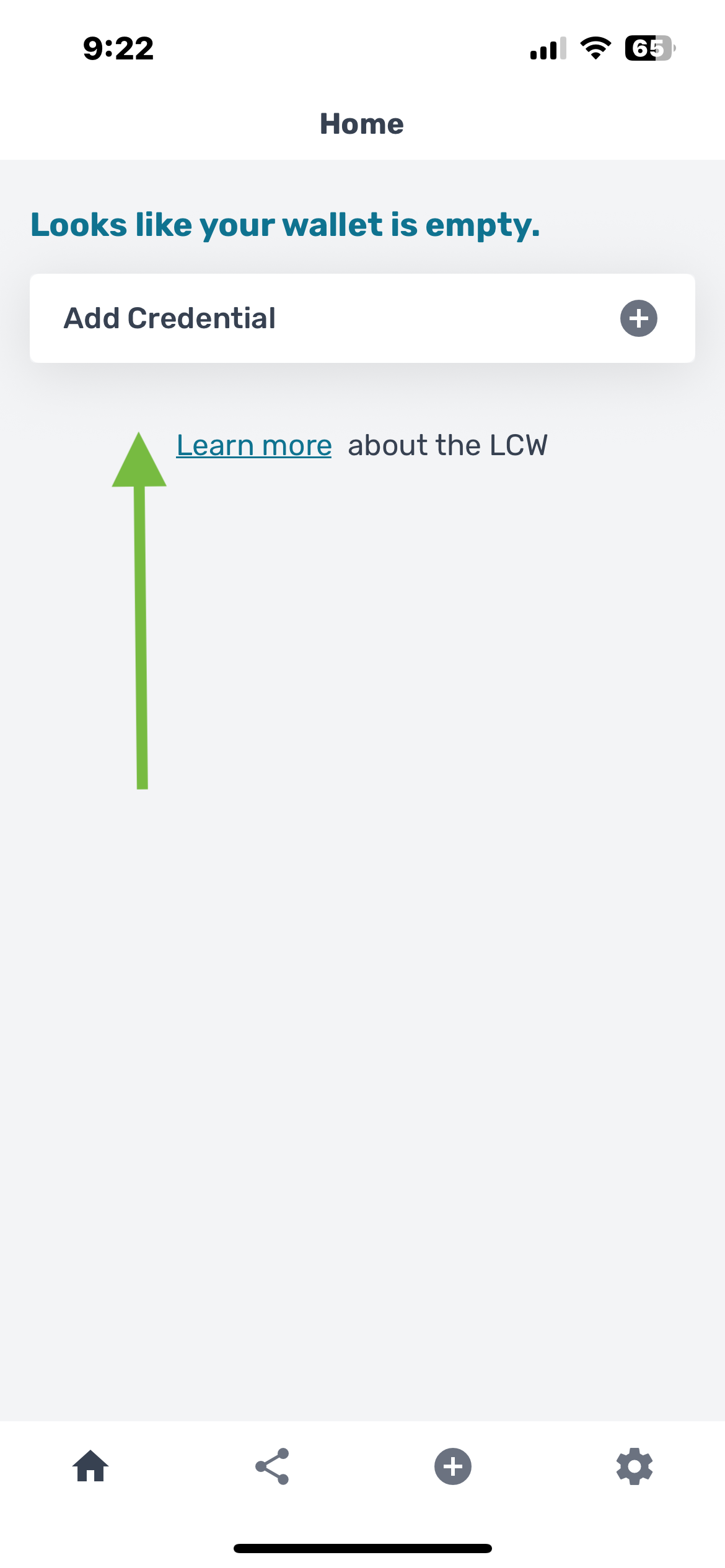
Step 2: Add credential
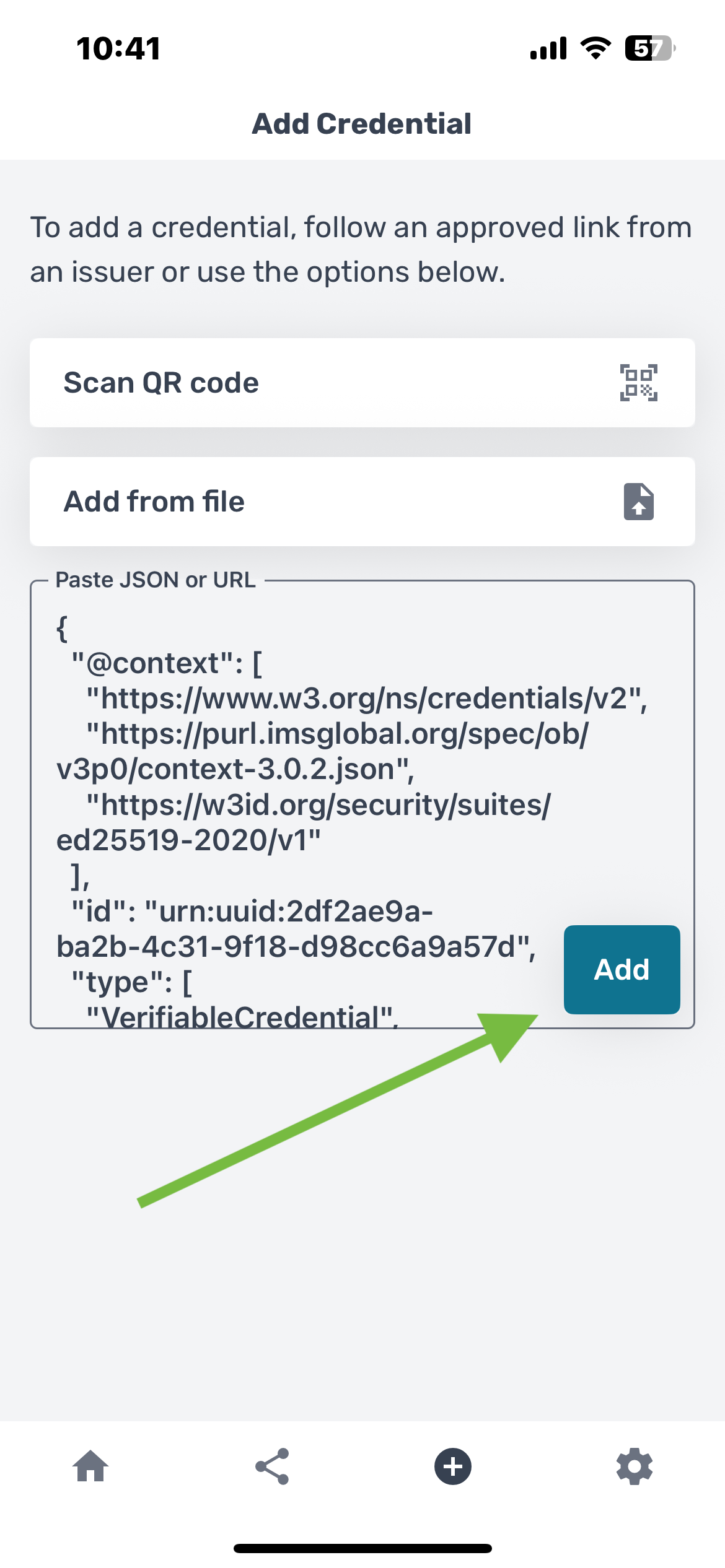
Step 3: Paste JSON
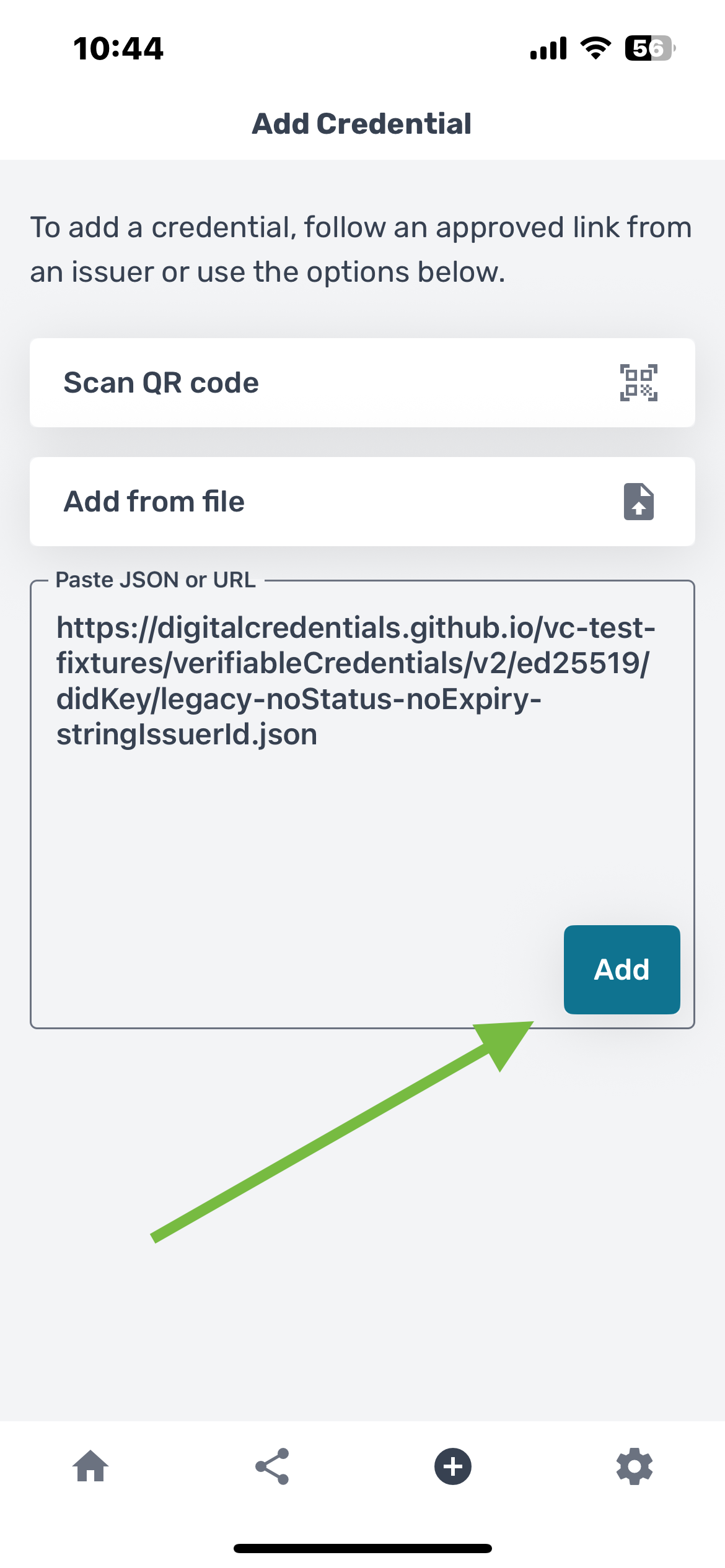
Step 3: Paste URL
From file
- You may have received a file containing the credential code, or JSON. Save this file so that you can access it from your mobile device.
- Navigate to the "Add Credential" page on the LCW. This is indicated by the plus sign icon on the bottom navigation.
- Select "Add from file" and select the file in your phone. Select your profile.
- Select "Accept."
- You will be navigated to the "credential preview" which shows you the rendered credential.
- When you return "home" you will see the credential listed.
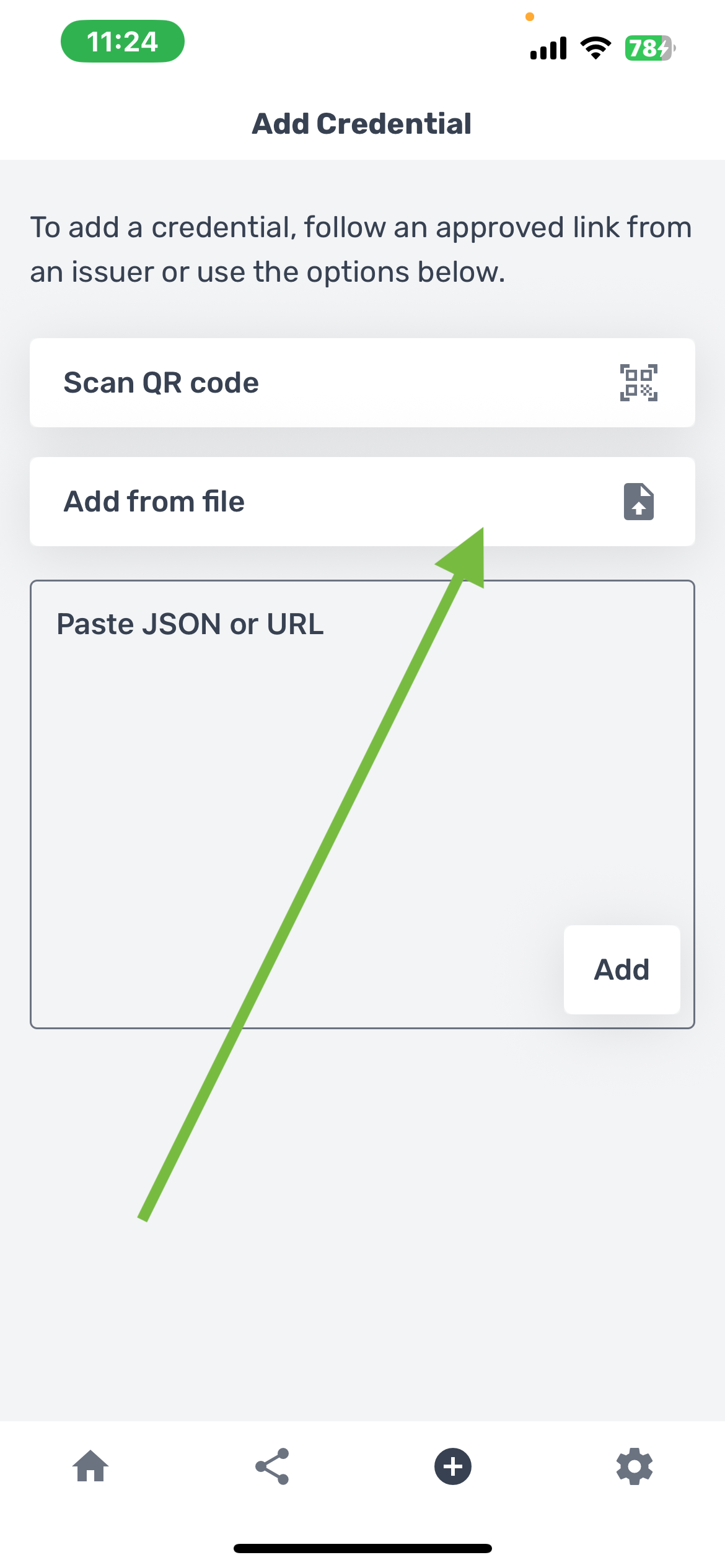
Step 2: Select Add from file
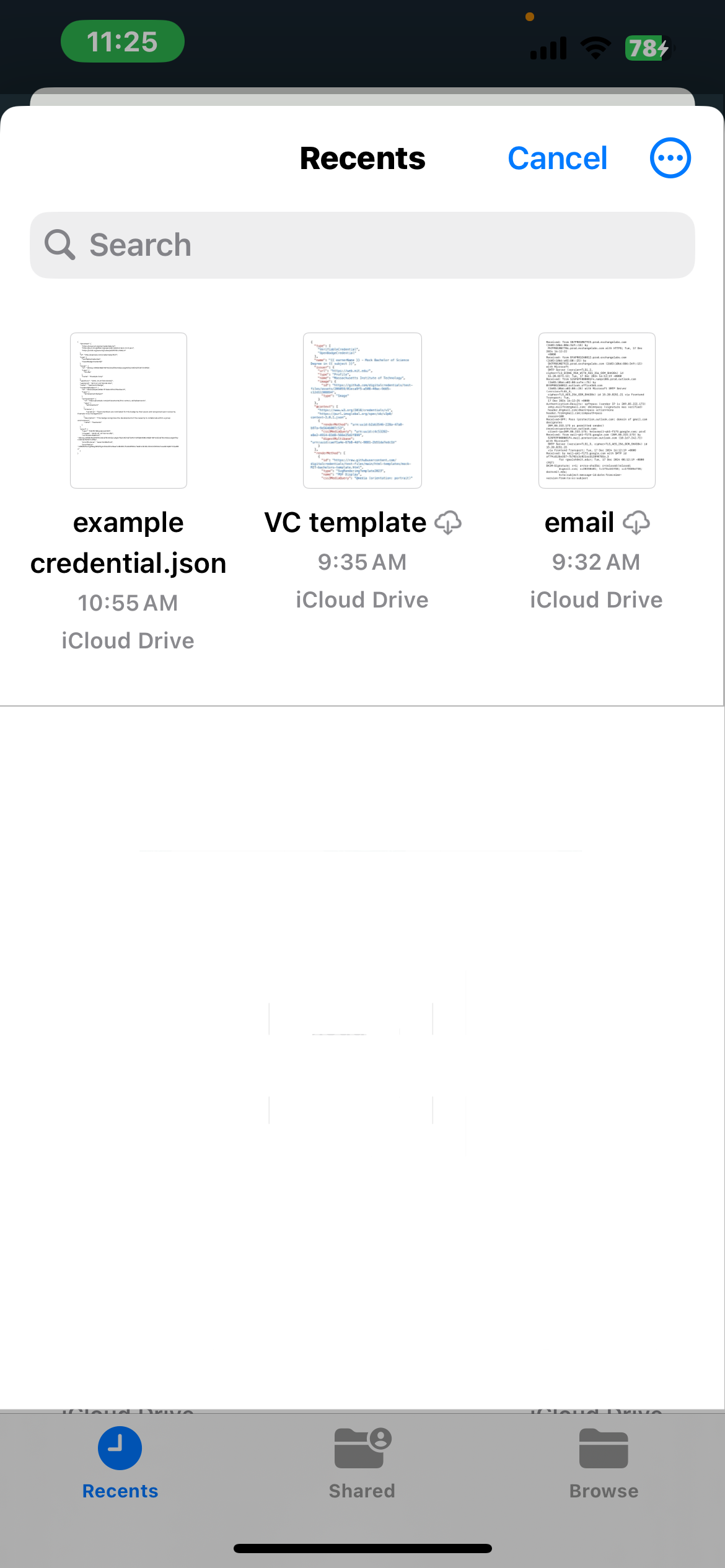
Step 3: Choose file
Step 3: Accept
From a badge image
- Some credential issuers may be issuing OBv3 but using an approach called "badge images." In this case, the process is similar to uploading your credential "from file" as described above. However, the file must be a .png image. For more information on this please visit the DCC blog post on this topic.
How to share a credential
There are a number of ways to share your credential. Most of them require you to "create a public link." This means that the LCW will create a link that is hosted on a server currently maintained by the DCC. This is a public URL, meaning that anyone with the link can view your verified credential in the DCC verification app called VerifierPlus.
To share a credential from the LCW:
- Navigate to your home page. From here you can either
- Select the share icon on the bottom navigation. Select "Create Public Link." This will ask you to select the credential you want to share. Then select "Create Link.
- OR select the credential you want to share then select the three dots in the top right corner and select "share." Then select "Create a public link."
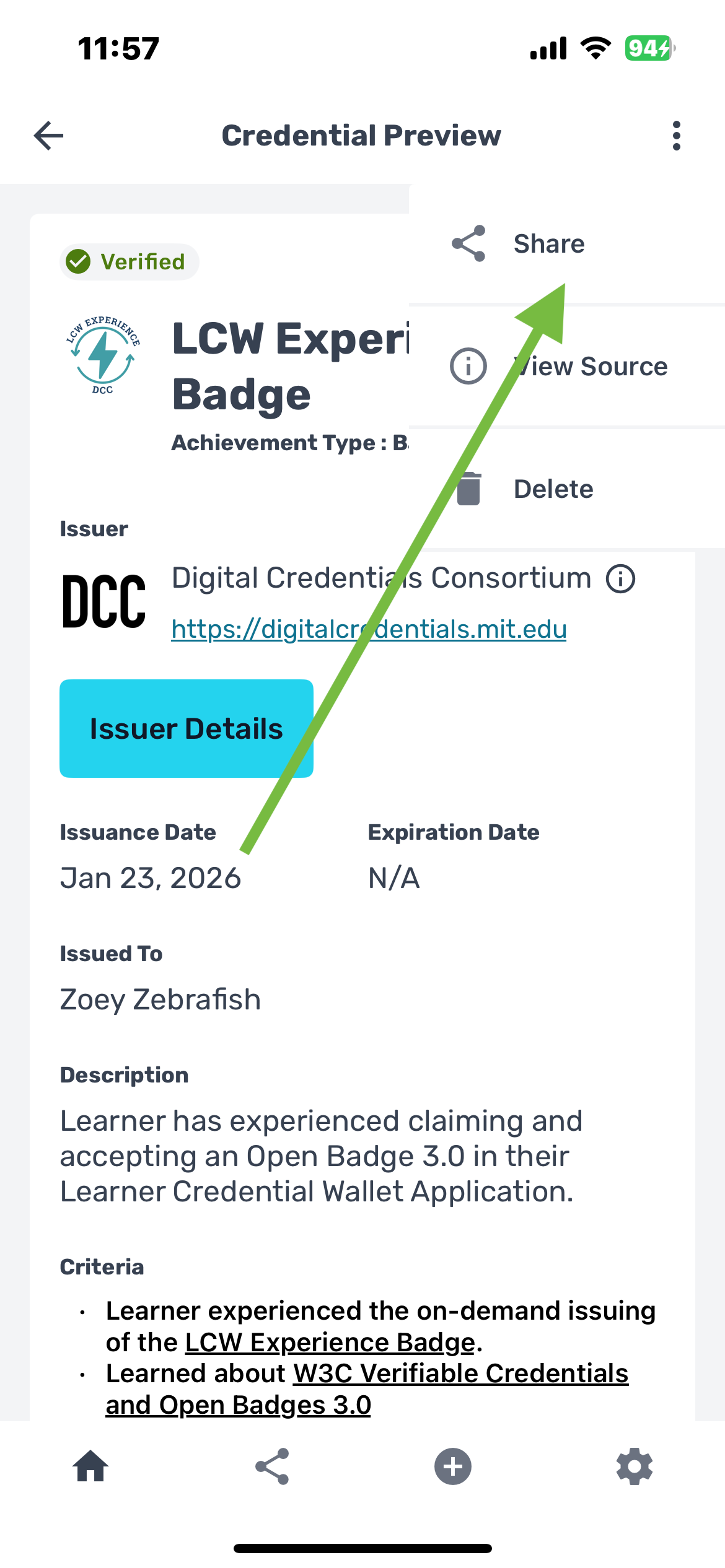
Step 1: Navigate to credential, select the 3 dots and select "Share"
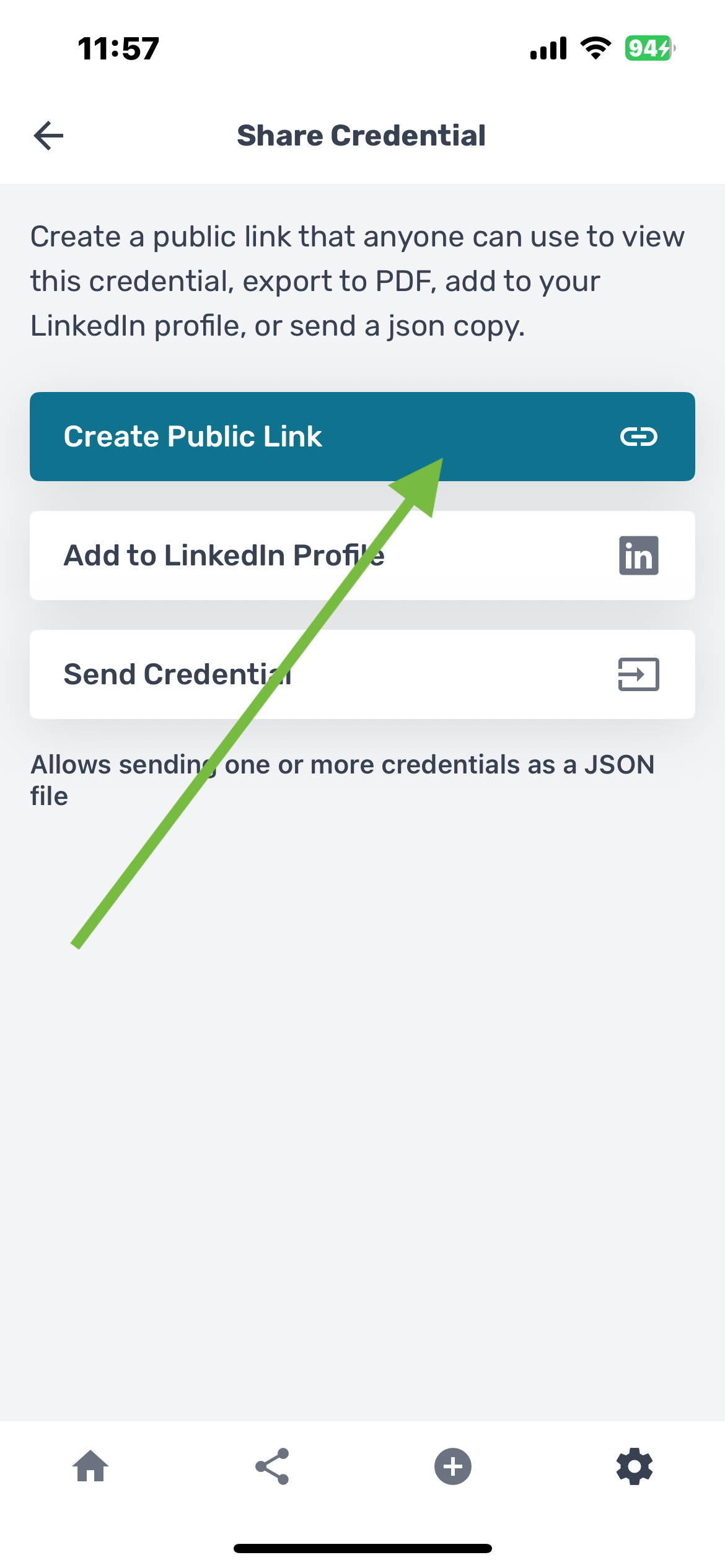
Step 2: Create a public link
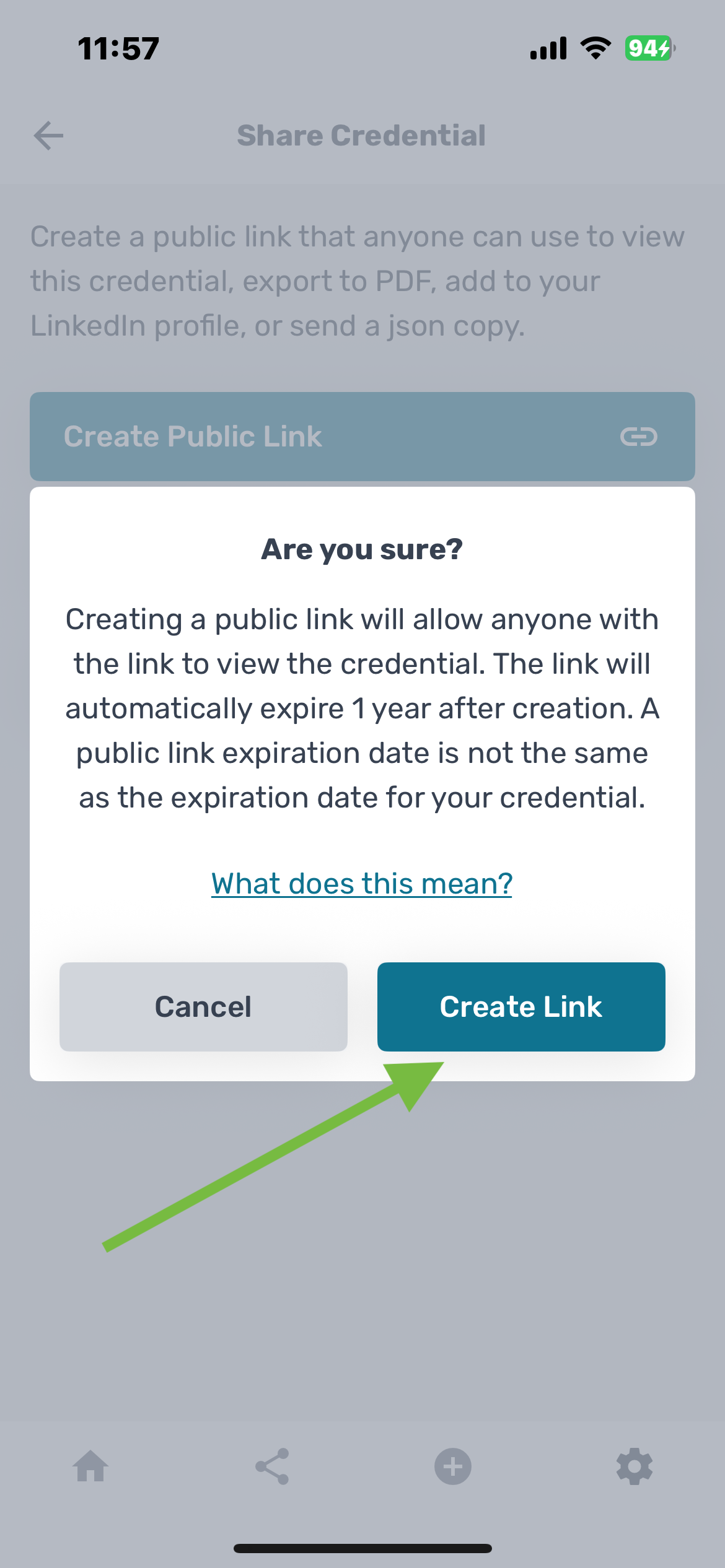
Step 4: Create link
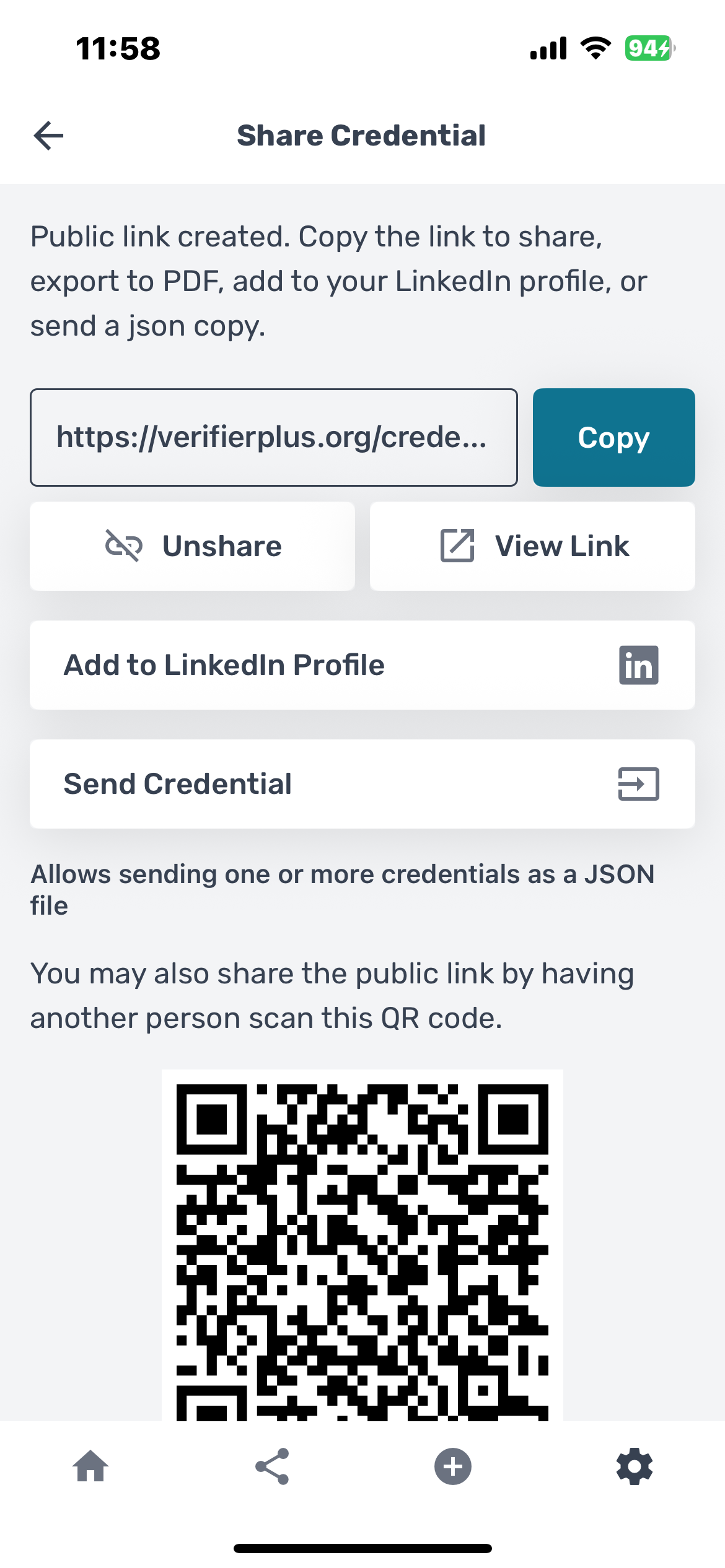
Step 5: Choose method to share
- Once you have created a public link, you will be able to share your credential as:
- A deeplink or URL: Select "Copy" and send the URL via email, text message or other channels.
- A text file: Select "Send Credential" and choose from your device where you would like to send the file. Note that this file will not be a rendered image of the credential but the JSON code. More information on how to use this code is explained below in the section on VerifierPlus.
- A QR code: A person seeking to verify your credential can scan the QR code on your LCW using their mobile device.
- Share to Linkedin: Select "Add to Linkedin Profile" and then "Add to Linkedin." This will prompt your mobile device to open the Linkedin app if you have it downloaded and log into your Linkedin account. From here you can add your credential to your Linkedin profile.
Verifier Plus
The DCC runs a website called VerifierPlus which will verify your credentials on your computer. The public link generated when you share your credential will direct the recipient to VerifierPlus.org. After choosing to "Create Public Link" you would be able to select the blue "copy" button to copy the URL. To verify:
- Using a URL: Copy the URL from the share page in LCW. You can send this link to your computer using email, text or messaging app. Paste the URL into the box labeled "Paste JSON or URL."
- Using file upload: Visit VerifierPlus.org. Locate the section labeled "Drag and drop a file here or browse." You can either select the text file in your document finder and drag it into the box or click "browse" to choose from files in your document finder. Both options will render your credential in VerifierPlus.
- Pasting JSON: Locate your JSON text file and copy the entire code to your clipboard. Locate the section in VerifierPlus labeled "Paste JSON or URL" and paste the entire code into the box. Select "Verify." This will render your credential in VerifierPlus. Note: You must copy and paste the code exactly as it appears. Missing even a single character will result in your credential being unreadable by VerifierPlus.
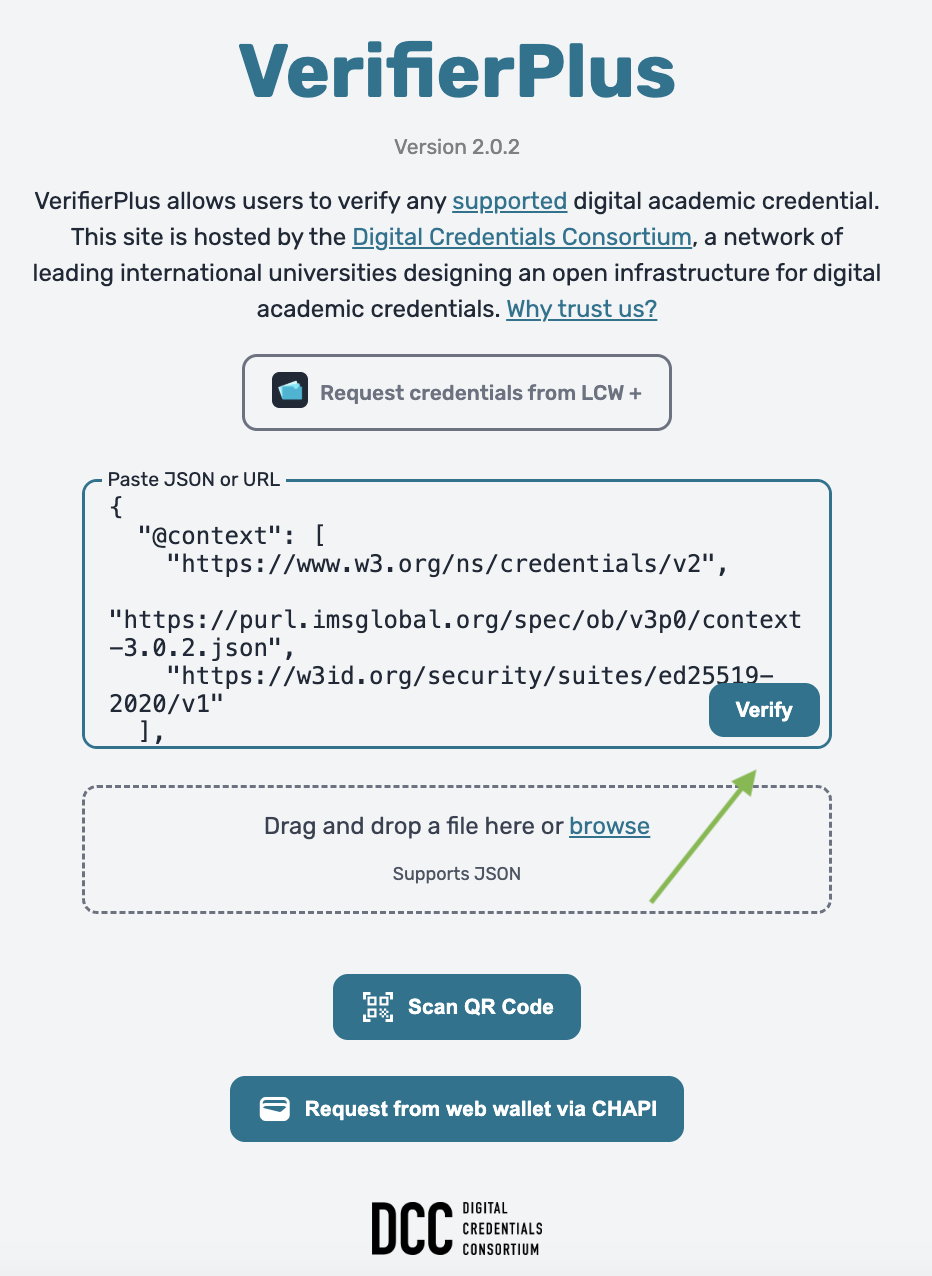
Option 1: Paste JSON
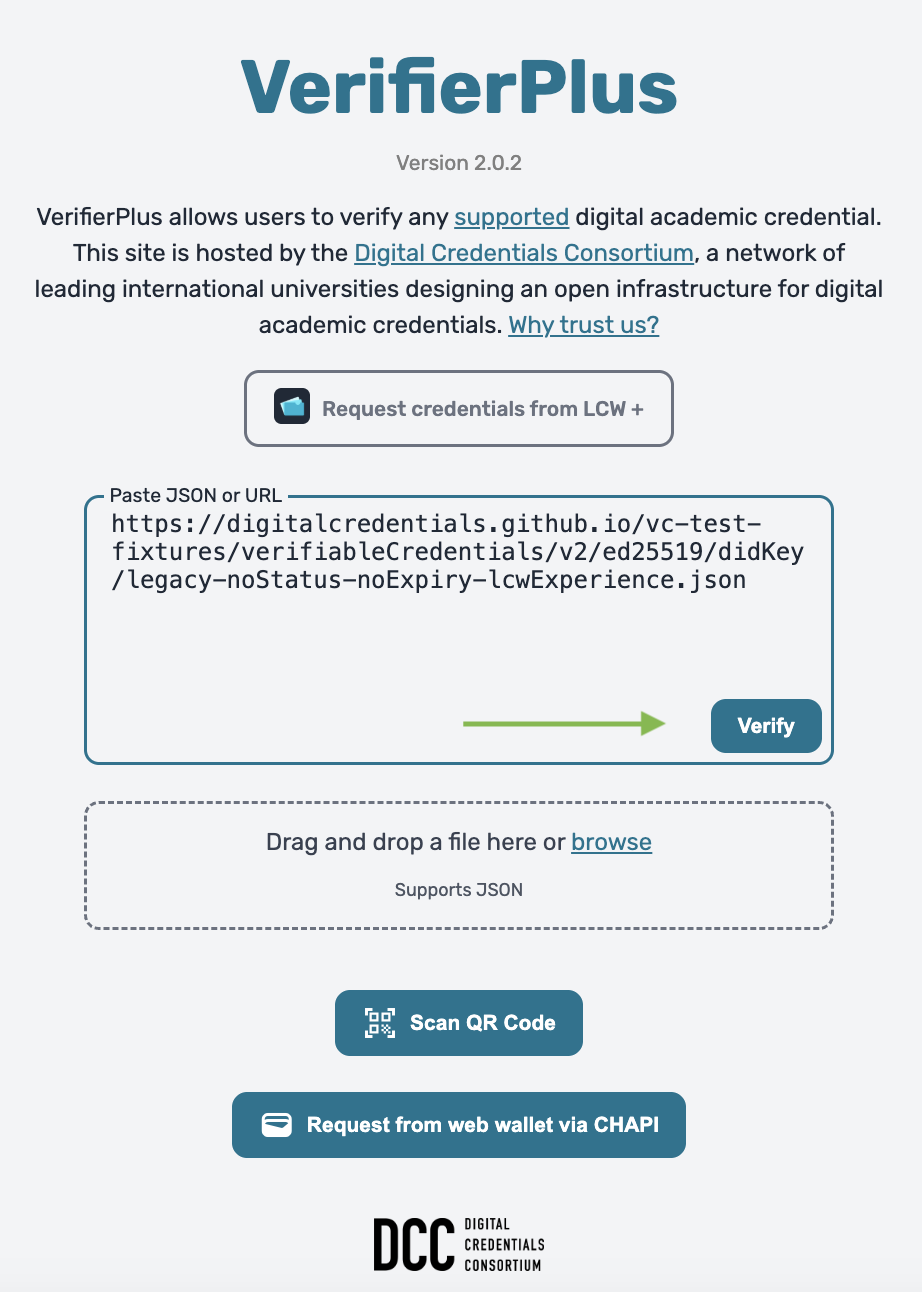
Option 2: Paste URL
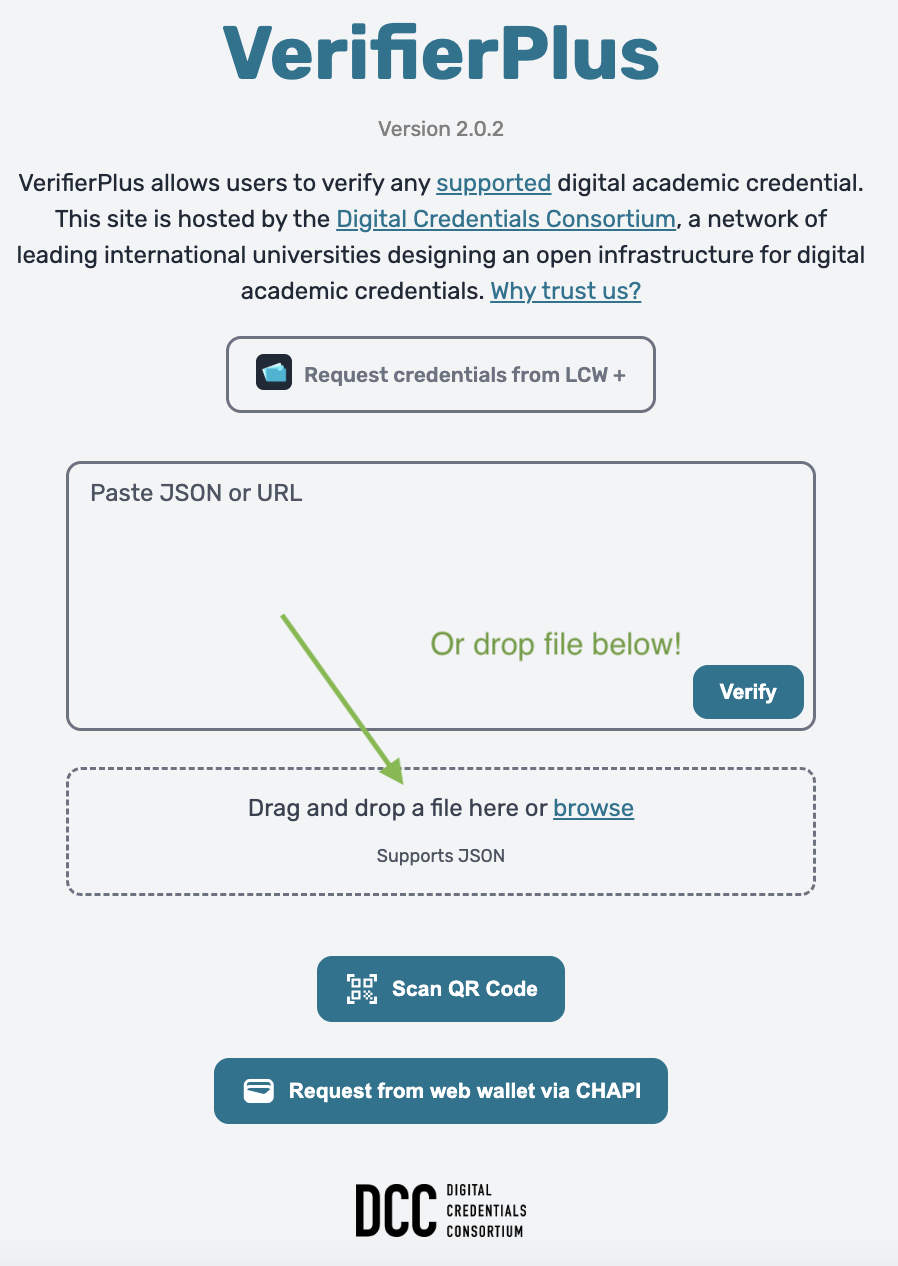
Step 3: Option 3: Upload file
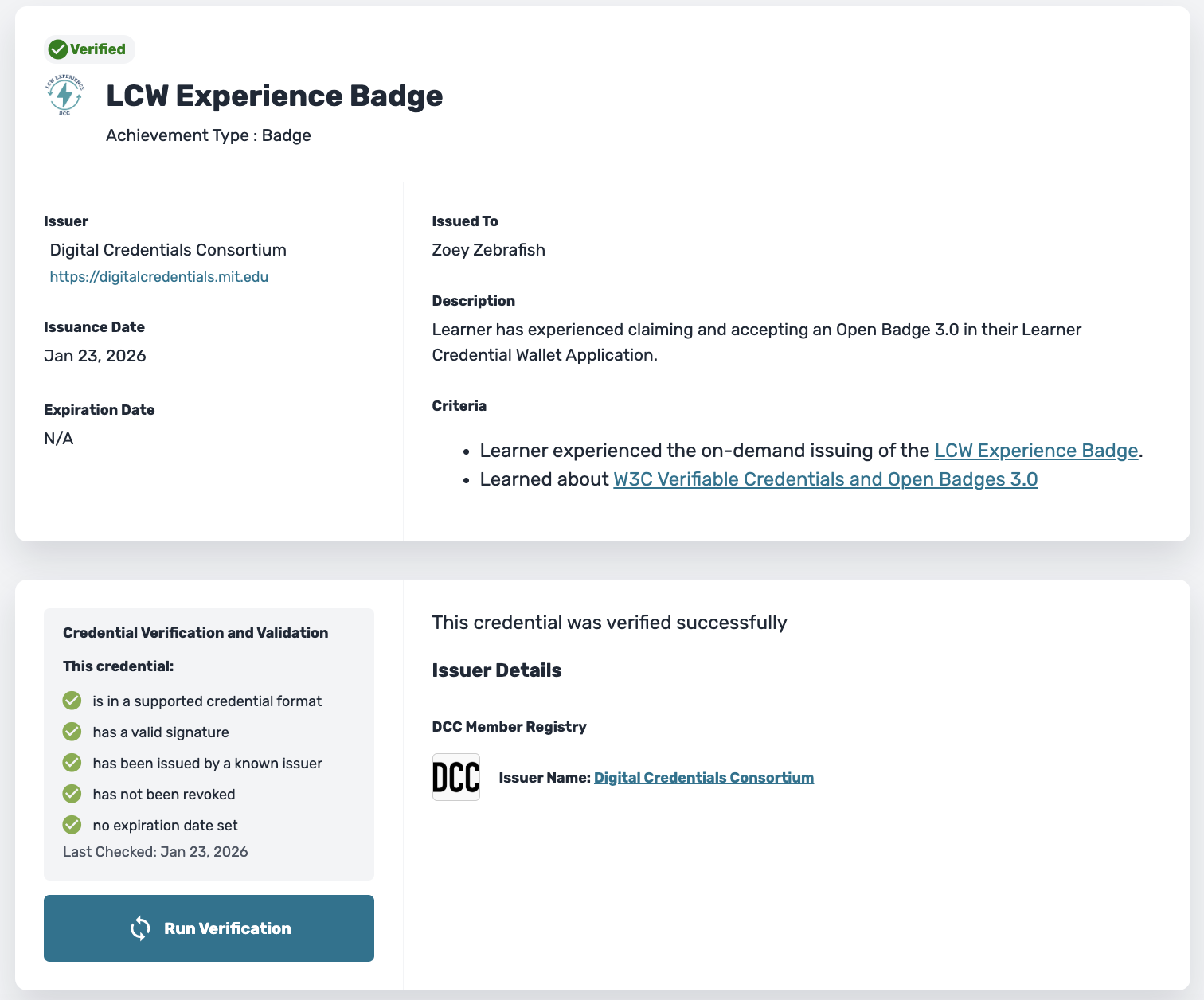
Example of credential verified on VerifierPlus
About credential verification
The LCW will display OBv3 compatible credentials. The application also verifies credentials in real time. You can check the verification status of your credential by navigating to the credential preview and scrolling down to the section labeled "Credential Verification and Validation." You will see a list of checks that the application has performed to verify that your credential:
- Is in a supported format (meaning it is OBv3 compliant)
- Has a valid signature (has been digitally signed by the issuer)
- Is in a known issuer registry (see section on issuer registries)
- Has not been revoked (meaning it has not been cancelled by the issuer)
- Has not expired (is still valid according to the dates set by the issuer)
A green checkmark indicates that a credential is verified. A red "X" or a yellow "!" next to any of these items indicates that the credential has not passed this particular verification check. This does not necessarily mean that the credential is fraudulent or illegitimate. For example, a credential that is expired still indicates that you have earned or received it, but it may no longer be valid according to the expiration date set forth by the issuer.
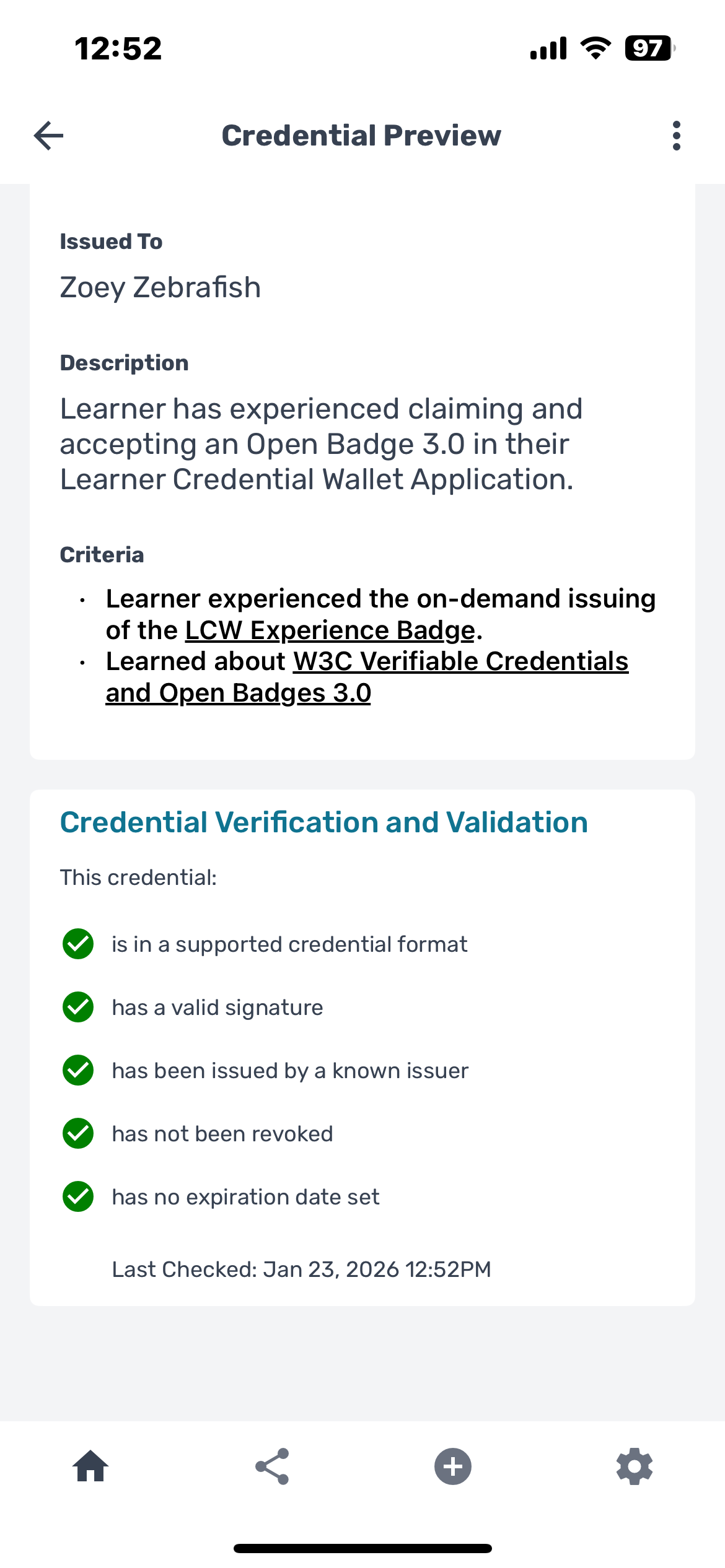
Verified Credential
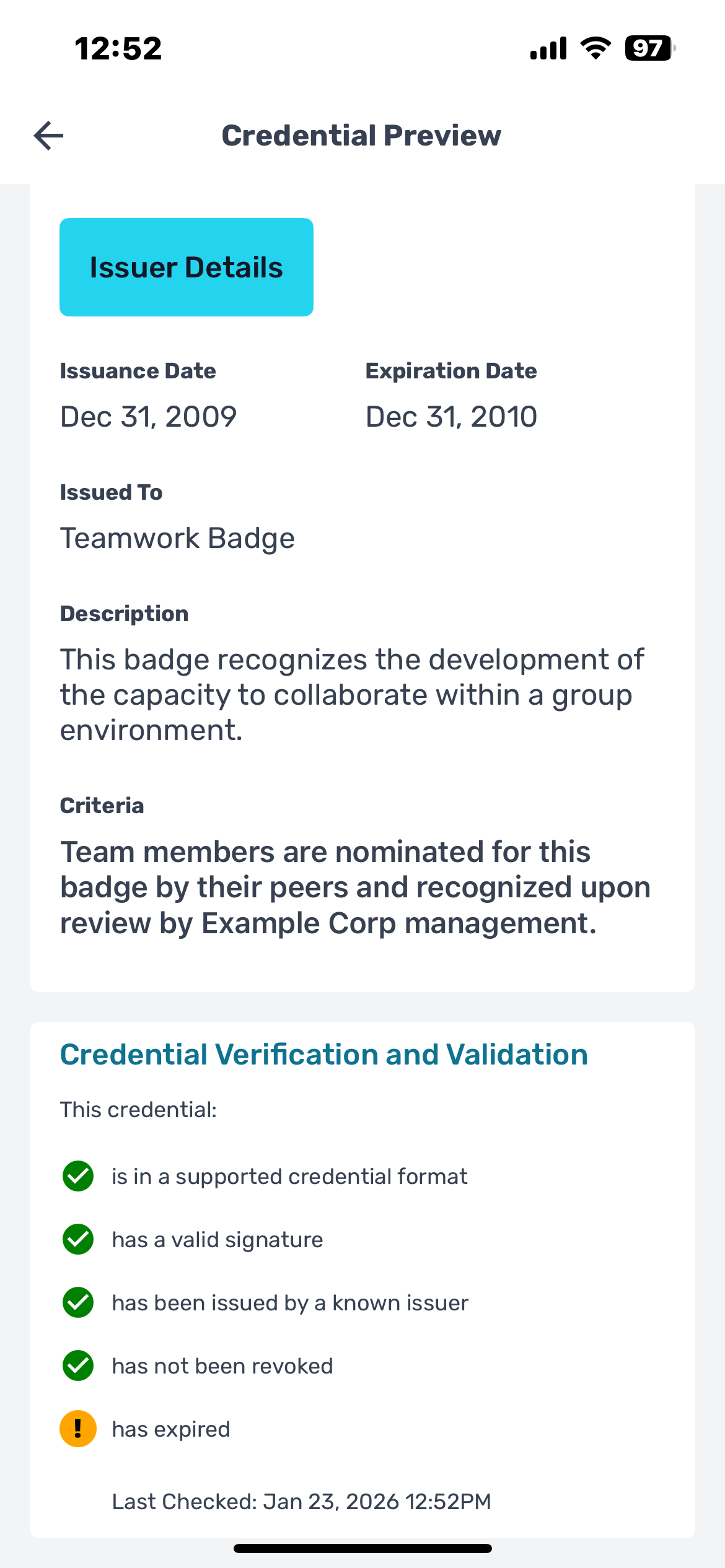
Expired credential shows warning
How to backup your credentials
The LCW does not store your username or password. There is no password retrieval process if you forget your password or lose your mobile device. Therefore, we recommend that you back up your credentials by creating a copy of your wallet contents.
- Navigate to the bottom of the wallet application and select the cog icon on the bottom right hand corner.
- From the list, select "Backup Wallet" and then "Create Backup." This will prompt the download of a JSON code file. Save this file to your mobile device or computer.
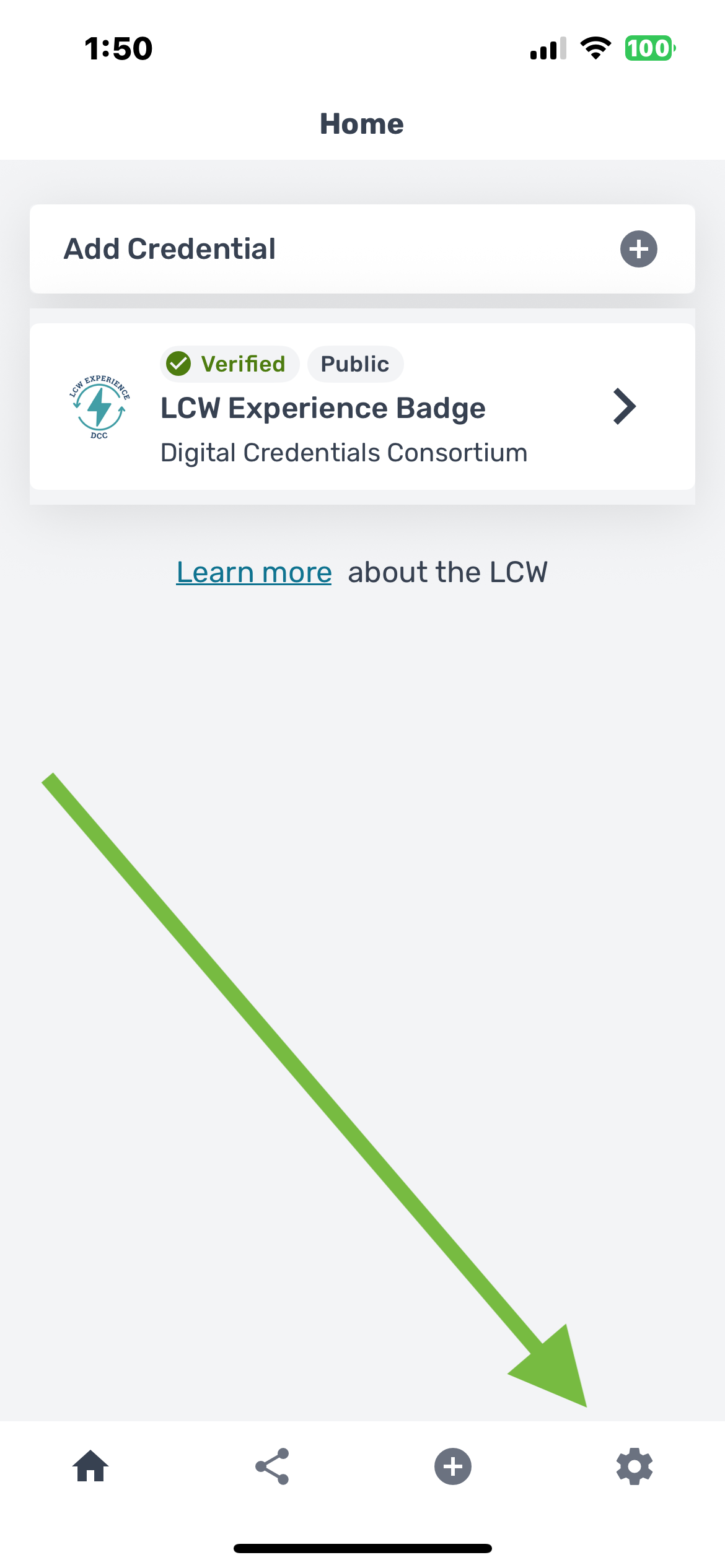
Step 1: Navigate to settings
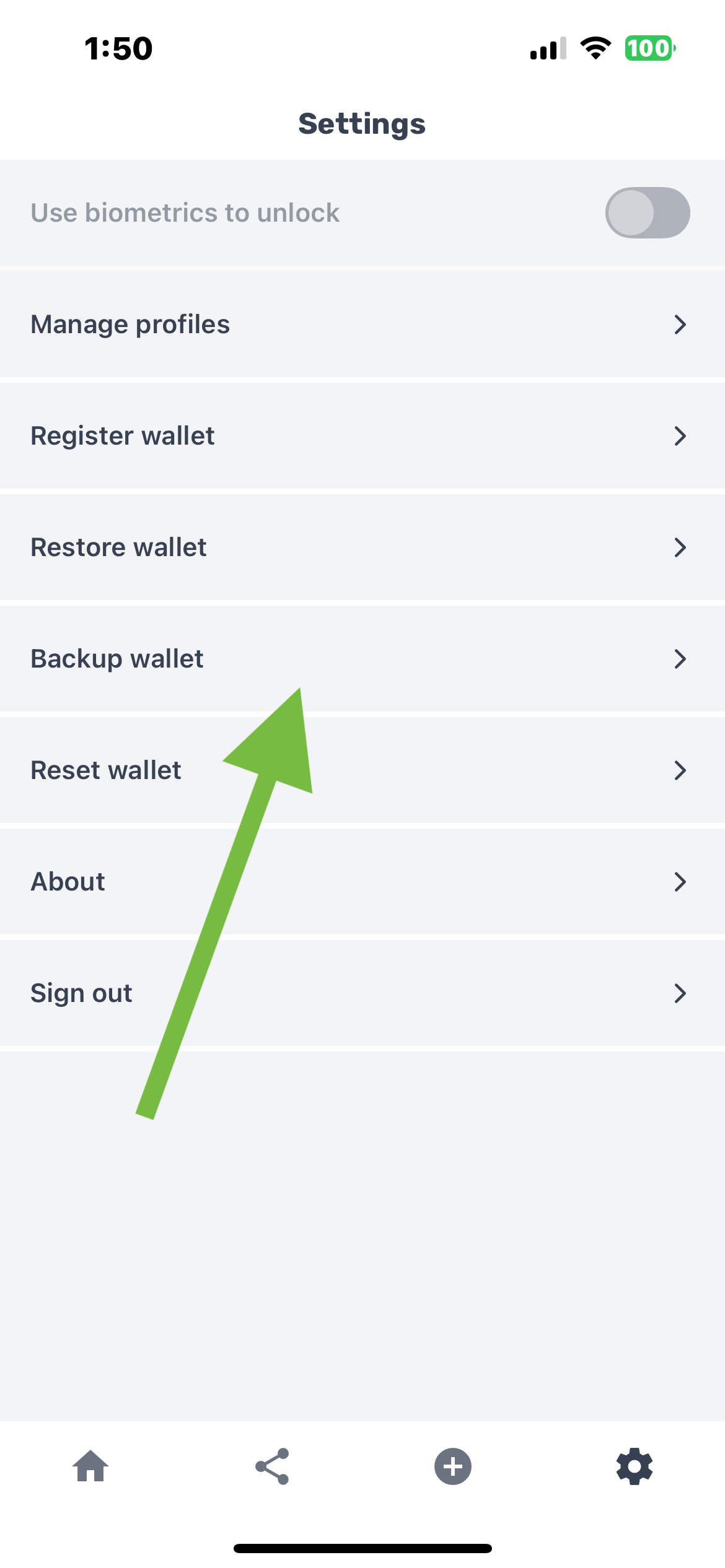
Step 2: Select Backup wallet
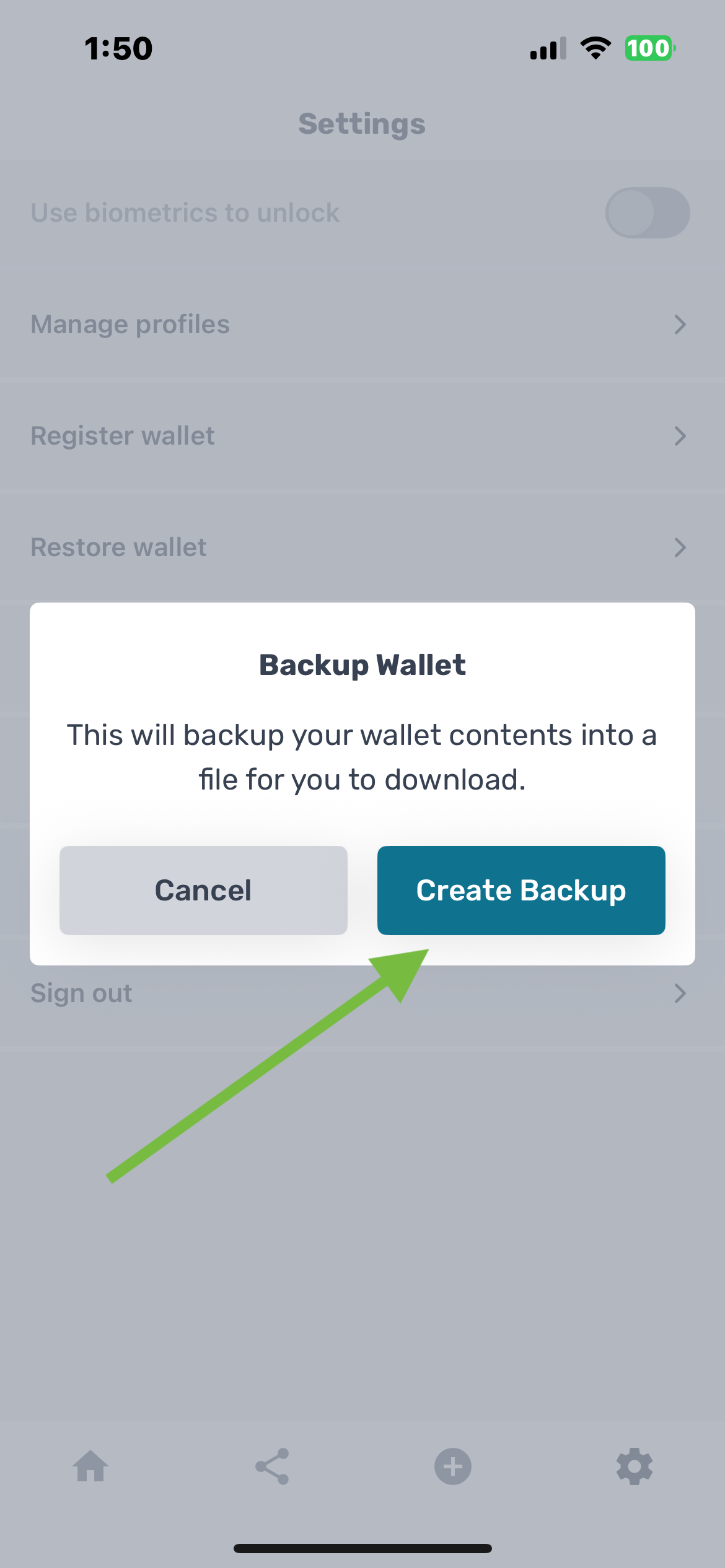
Step 3: Create Backup and save to device
About issuer registries
An issuer registry is a digital list containing the signing keys of a particular set of issuers governed by an established authority. Think of it like a guest list for a party containing the contact information of attendees. The host of the party decides who is on the list and confirms that the phone number listed belongs to the person they have chosen to invite.
To determine whether or not your credential has been verified as being issued by an organization on a known issuer registry navigate to the credential preview page.
- A credential whose issuer is not on a registry will show a yellow "!" warning in the "Credential Verification and Validation" section at the bottom of the page. This does not mean that the credential is fraudulent or illegitimate, only that the issuer is not listed on an issuer registry.
- A credential that has been signed by an issuer on an issuer registry will display with a green checkmark next to "has been issued by a known issuer." At the top of the credential preview, just beneath "Issuer" you can select the blue button that says "Issuer Details" to see more about which issuer identity registry(ies) the issuer is a part of.
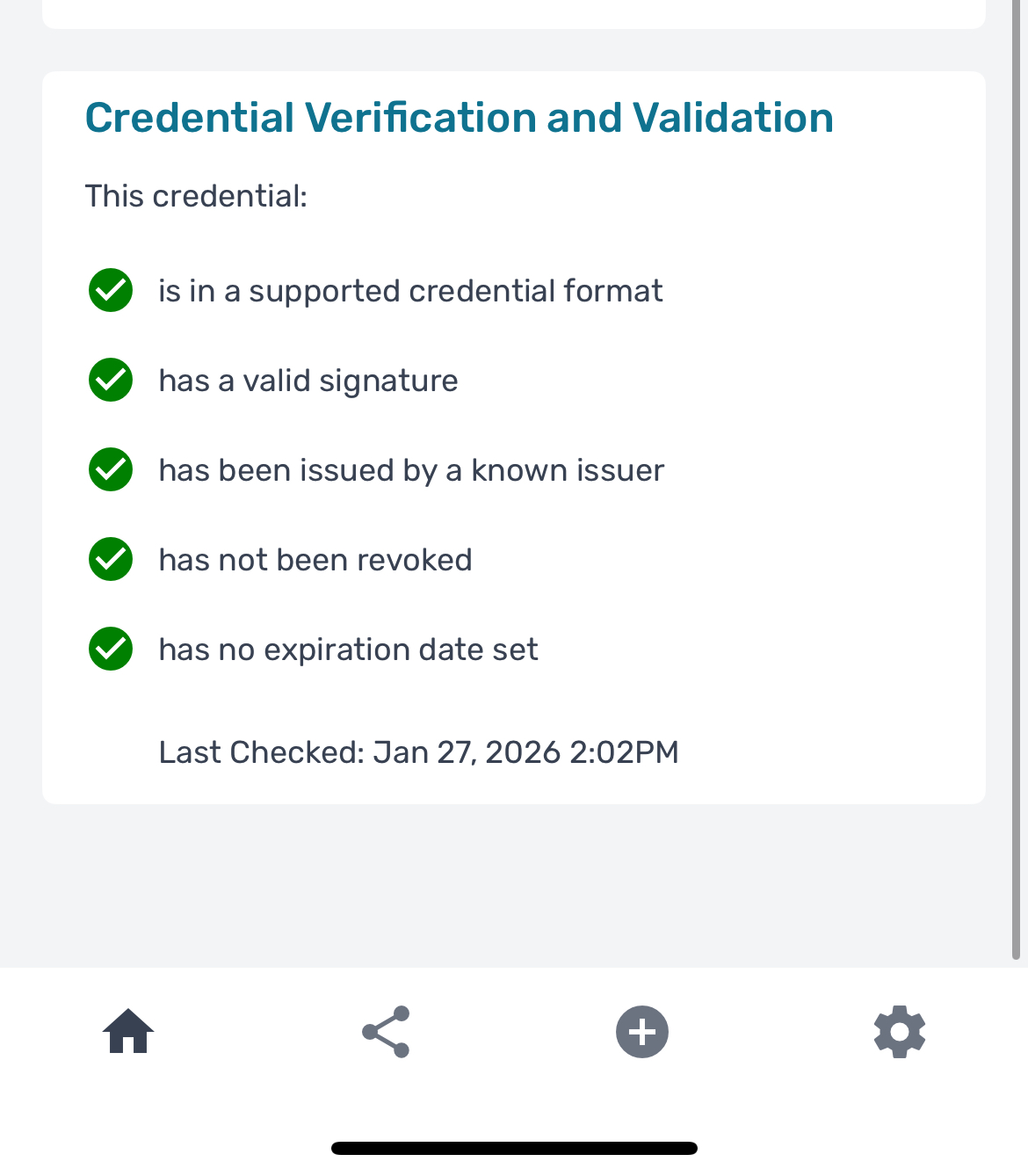
Credential is on a known issuer registry
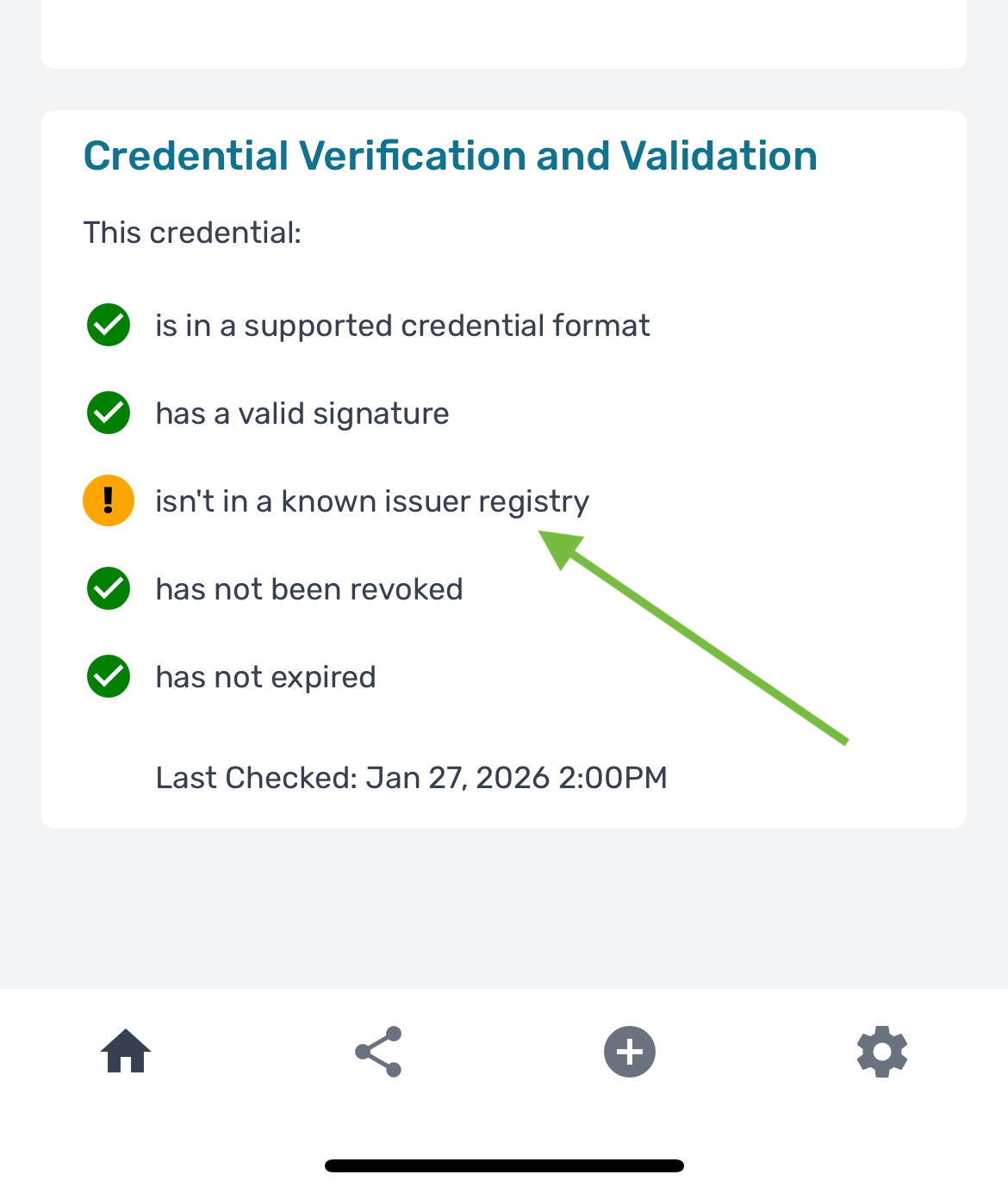
Credential is verified but not on a known issuer registry
Issuer identity registries are a relatively recent development in digital credentials. To learn more about the DCC's research and approach to this part of the credential ecosystem, read the Issuer Identity Registry Research Report.